Communicating with sources
SecureDrop Workstation lets journalists check SecureDrop, decrypt and securely view submissions, and reply to sources, all on the same computer.
Once logged in, you will see a chat-like user interface:
The top of the left panel shows your username, if you are logged in, or the sign-in button.
The action area of the left panel provides the ability to search for sources, toggle the sort order, select multiple sources, and delete sources.
The larger portion of the left panel holds the list of sources that have submitted to your instance. Each source is identified to you with a two word pseudonym. You will also see the date of the last source activity, an icon to indicate if a source contains attachments, and a button to mark a source as starred.
The right panel holds the conversation view. All parts of the conversation with a specific source (messages, files, and journalist replies) will be displayed here.
Opening a conversation
To display a conversation in the conversation view, simply click a source in the source list.
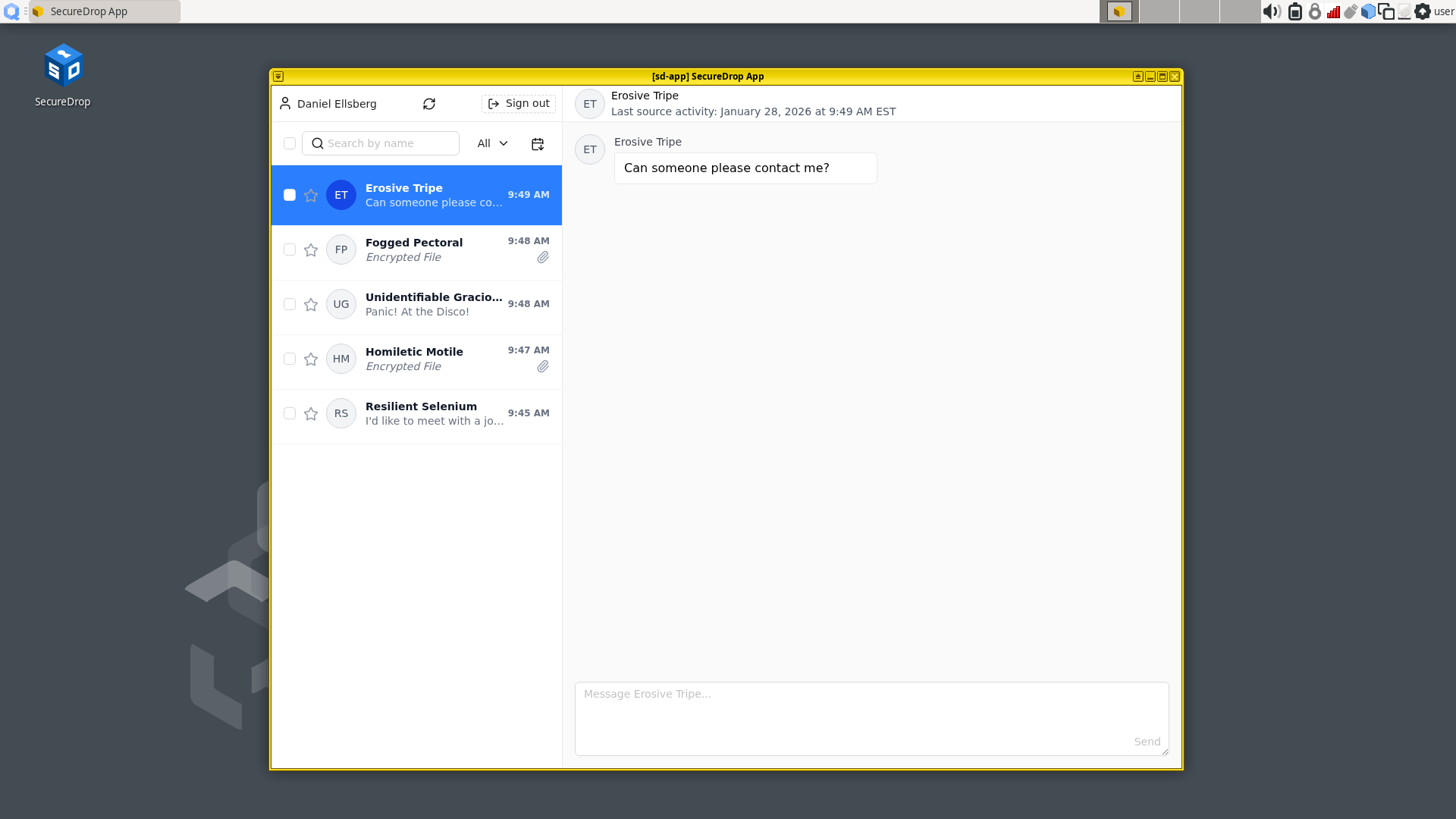
Journalists sending replies are assigned different colors and identified with their initials. Move your mouse pointer over the initials to reveal the full name.
Note
When you are prompted by a dialog that says “Do you allow VM ‘sd-app’ to access your GPG keys (now and for the following 28800 seconds)?”, click Yes. This allows the SecureDrop Application VM access to the secure VM that holds your SecureDrop Submission Key.
Highlighting conversations
You can highlight important conversations by clicking on the star beside a source’s name. Starred sources will be visible as starred to everyone in your organization.
Sending a reply
Compose a reply to the selected source in the text box at the bottom of the conversation view. Click the Send button or press “Ctrl+Enter” to send a reply. Any replies you did not send will be discarded when you move to a different conversation.
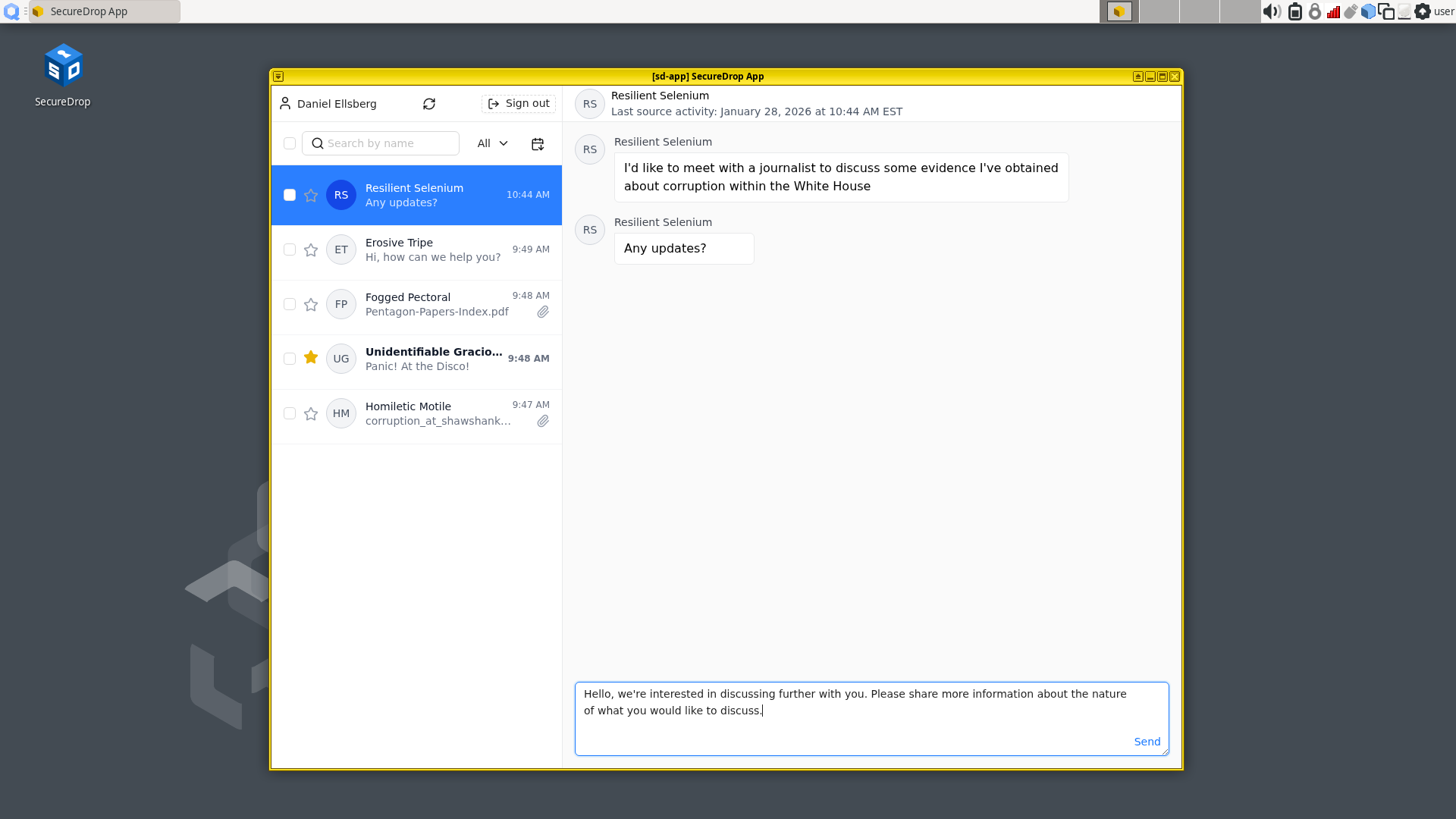
Note
If a reply fails to be sent successfully, it will still be visible in subsequent sessions, including to any other users logging into the same physical SecureDrop Workstation.
Deleting conversations
Deleting conversations
You can delete a single source conversation checking the box beside the Source name in the list, then clicking the delete button (as indicated by a trash icon) in the action area at the top.
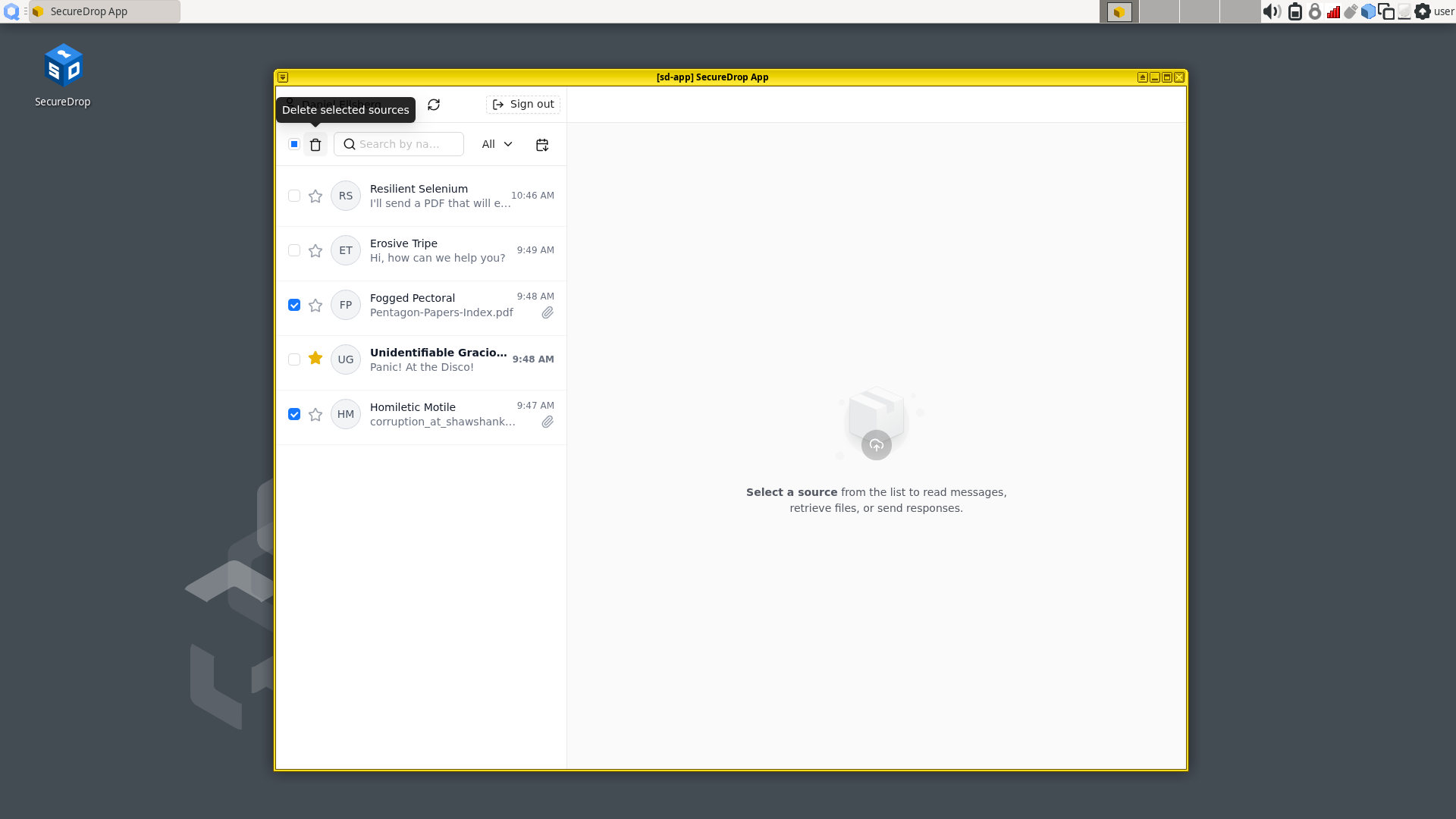
You will be presented with a pop-up where you will be asked to confirm if you would prefer to Delete Conversation or Delete Account.
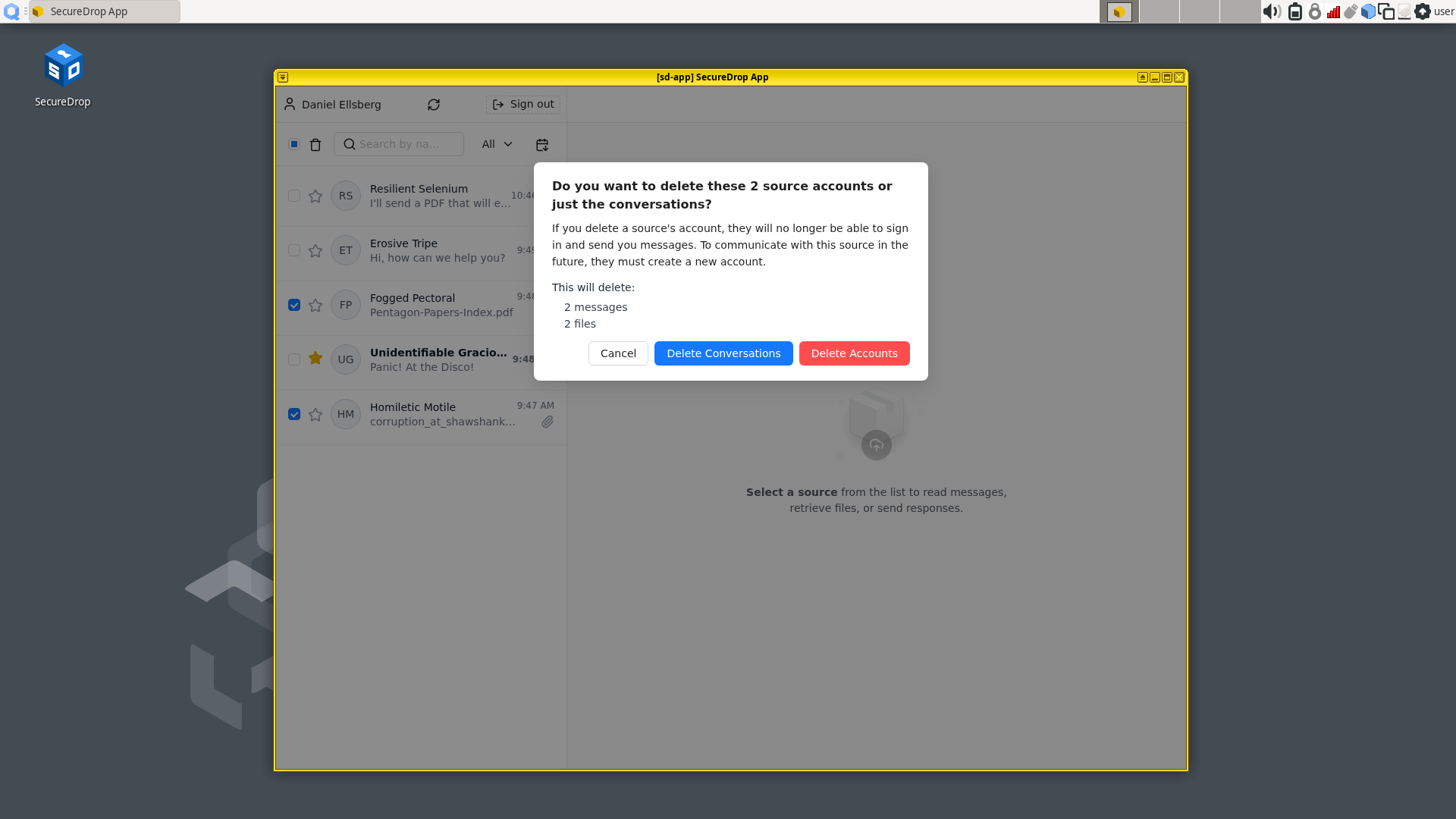
Click Delete Conversation to delete all files and messages (including journalist replies) associated with this source, while keeping the source account active. The source will continue to appear in the source list, and will be able to communicate with you through the Source Interface.
Click Delete Account to also remove the source from the source list, and to prevent them from logging into the Source Interface. Their account will be completely removed from the system.
Deleting multiple conversations
To delete multiple conversations or accounts, select more than one source conversation from the list, then click the delete button. You will be presented with the same options to Delete Conversations and Delete Accounts as you would with a single source conversation.